Setup guide
Forward your Gmail to Klonr
Set it up once, and everything you forward from the senders you choose lands in Klonr automatically from then on.
You'll need a computer
Gmail's mobile app doesn't include forwarding settings, on iPhone or Android, and neither does Gmail in a mobile browser. That's a Google limitation, not ours. Once forwarding is on, it runs itself. You won't need a computer again unless you want to change it.
Open Gmail's forwarding settings
On a computer, open Gmail, click the gear icon in the top right, then "See all settings." Open the "Forwarding and POP/IMAP" tab.
Or skip the clicking and go straight there: open Gmail's forwarding settings directly.
That link opens whichever Google account you're signed into first in that browser (Google calls it account /u/0). If you use more than one Gmail account, check the address shown in the top right before you touch anything.
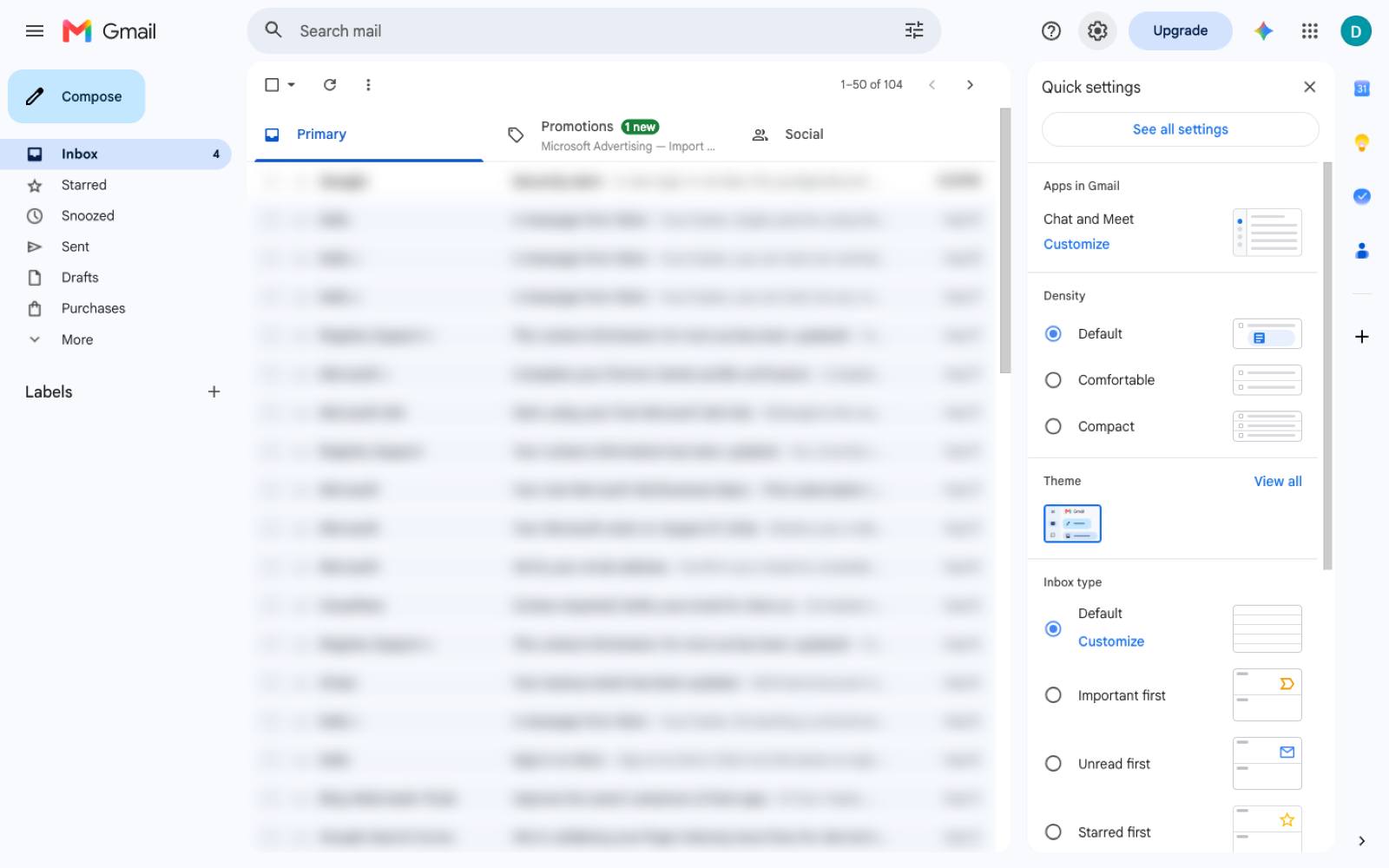
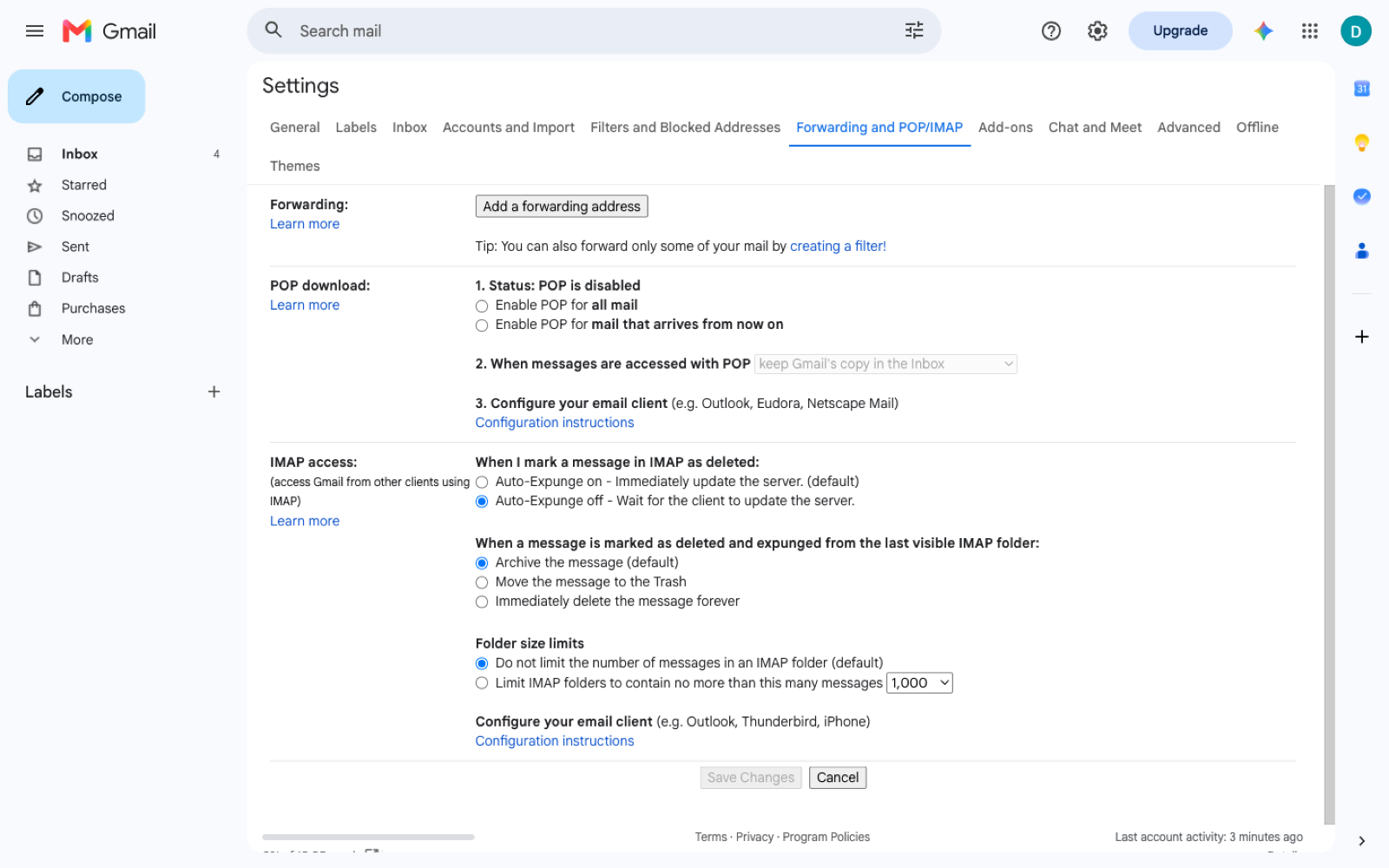
Add your Klonr address
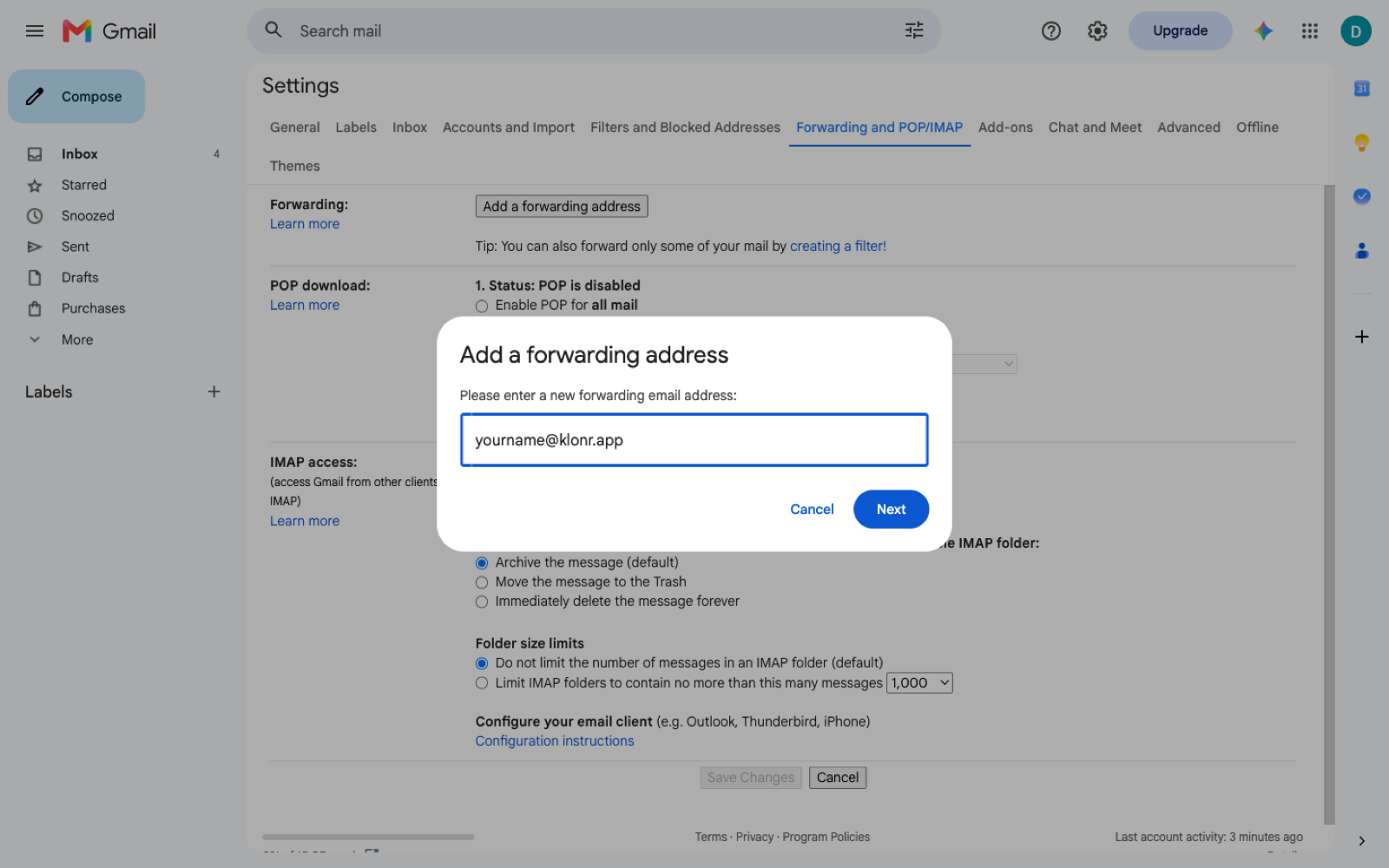
Click "Add a forwarding address" and enter your personal Klonr address. We can't print it here, since every account gets its own. Find it on your dashboard under Settings, or text your assistant "what's my forwarding address" and it'll send it right back.
Confirm it's you
Google sends a confirmation code to that address, and Klonr catches it before you ever see it. A few seconds later, we'll text or email you: "Was this you?" Reply YES and the confirmation finishes on its own. No code to copy, nothing else to do.
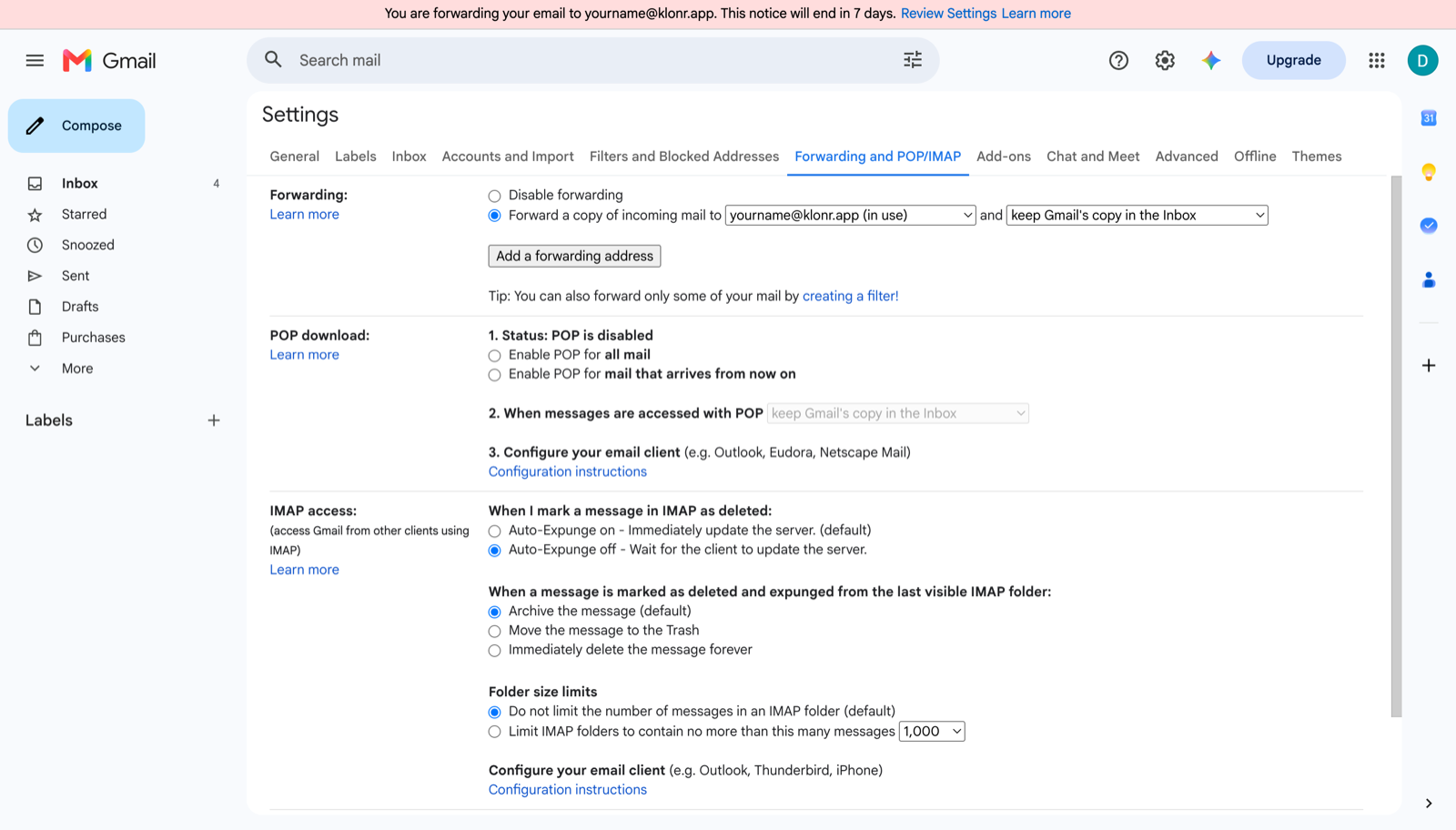
Choose what gets forwarded
Back in Gmail's forwarding settings, "Forward a copy of incoming mail" sends everything. That works, but Klonr sees your whole inbox from then on.
We'd rather you set up a filter instead: just the senders who actually matter, school, daycare, your kid's coach. In Gmail's search bar, something like:
from:(school.edu OR daycare.com)then "Create filter" and check "Forward it to" your Klonr address. Only mail from those senders reaches us.
What happens next
Forwarding is live as soon as you save it. Send yourself a test email from another account, or wait for the next school newsletter, and check your dashboard once it lands. If nothing shows up after a few minutes, text your assistant and we'll help you look.
Questions
A couple of things people ask
Why do I need a computer?
Because Google built the forwarding setting into Gmail's full desktop site only. It's missing from the Gmail app on iPhone and Android, and from Gmail in a mobile browser too. That's a Google decision, not ours, and it only affects setup. Once forwarding is on, it keeps running with no computer involved.
Is this safe? How do I undo it?
You decide exactly what forwards, everything or just a filtered list of senders, and you can change that any time. Klonr never gets standing access to your inbox itself, only what you choose to send it. To turn forwarding off, go back to Gmail's Forwarding and POP/IMAP settings and click "Disable forwarding." It takes effect right away.